RBGeon standalone bookmark manager explained
What is the best free standalone bookmark manager for Windows?
The answer is RBGeon standalone bookmark manager because it is free, fast and easy to use. It works on multiple Windows computers so that you can access your links just by logging in the RBGeon standalone bookmark manager client on a different Windows computer.
Advantages of RBGeon standalone bookmark manager
-Free.
-Fast and easy to use.
-You don’t get duplicate links. If same url is added multiple times, it is just moved to perhaps a new category.
-New links can be discovered because RBGeon standalone bookmark manager shares its links between its users.
-Shared links are grouped together by relativeness.
-Shared links are checked via Virustotal.
-Seen links can be hidden.
-Unwanted links can be hidden.
-Links are sorted by click count.
-Urls are accessible via different Windows computers.
Disadvantages of RBGeon standalone bookmark manager
-No private links.
-No mobile support.
-Works only on Windows as standalone desktop program.
To get started with the RBGeon standalone bookmark manager you must download the RBGeon standalone bookmark manager client
Download
After installation when you launch the RBGeon standalone bookmark manager you have to register an account to use the RBGeon standalone bookmark manager.
No email needed for registration.
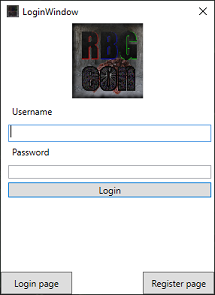
Login window
RBGeon standalone bookmark manager main tab
Picture 1 |
Picture 2 |
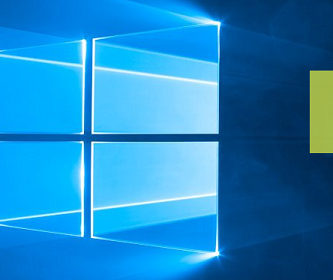
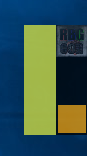
When you have logged in with RBGeon standalone bookmark manager client a yellow tab appears to the right side of the screen as shown in picture 1 and if you hover it with the cursor, it expands as shown in picture 2.
Storing links to RBGeon standalone bookmark manager
Storing new links happens so that you drag and drop the link you want to store to the yellow, black or orange part of the tab.
When dragged and dropped to the yellow part the link is stored uncategorized and favorited.
When dragged and dropped to the black part the link is stored uncategorized and not favorited.
-When dragged and dropped to the orange part a new window like in picture 3 opens and when you drag and drop the link to the newly opened window a new category can be created. If you already have done that and you are dragging and dropping a new link, there is an existing category where you can drag and drop the link to and the link to the same category. By now when the link is dropped it can be set as favorite by right clicking it. The categories can be named by clicking the text field above the category.
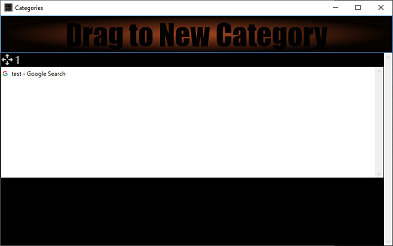
Picture 3.
Accessing links that are stored to RBGeon standalone bookmark manager
You can open added links when you click on the tabs orange, black or yellow part. When you have clicked orange part you can open the added link simply just by double clicking on it. If you right click on the added link you can remove it from the category, copy it to the clipboard or delete it. If you delete a link by accident you can click the yellow part on tha tab and you can find a radio button for deleted links. When you check the deleted links radio button you see your deleted links and can undelete link by right clicking on it and selecting undelete. When you click on the yellow part of the tab you can also see a checkbox that says “Use link inspector” if you check it and after that open a link it opens in RBGeon standalone bookmark managers inbuilt browser which size is half of the screen. There is also a radio button which says “Lone links” it displays links that are not shown in domainviwers. Domainviewers are shown if you click on the black area of the tab and have at least one link stored. If a domainviever is clicked it shows all links that are added from certain domain.
RBGeon standalone bookmark manager tray icon
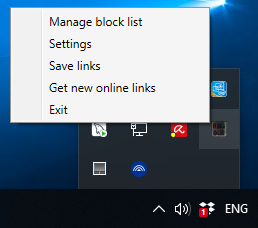
Picture 4.
On the bottom right corner of your screen, you can find RBGeon standalone bookmark manager tray icon as shown in the picture 4. If you right click it, you can see all the options it has.
In manage block list option you can unblock domains that you have blocked while browsing the Dungeon window.
In settings option, you can choose if you want to open your links in browsers incognito mode, start RBGeon standalone bookmark manager when computer starts, use link inspector. There is also possibility to change the minimum number of links from a domain required to get its own domainviewer it is marked as “minimum amount of urls to get own icon”.
Save links option saves all changes you have done in RBGeon standalone bookmark manager and it is good to click it before closing the RBGeon standalone bookmark manager or shutting down the computer because there might be a bug that causes RBGeon standalone bookmark manager not always saving changes on exit.
Get new online links option updates the links shown in the Dungeon window
Exit option closes RBGeon standalone bookmark manager and usually saves changes.
RBGeon standalone bookmark manager Dungeon window
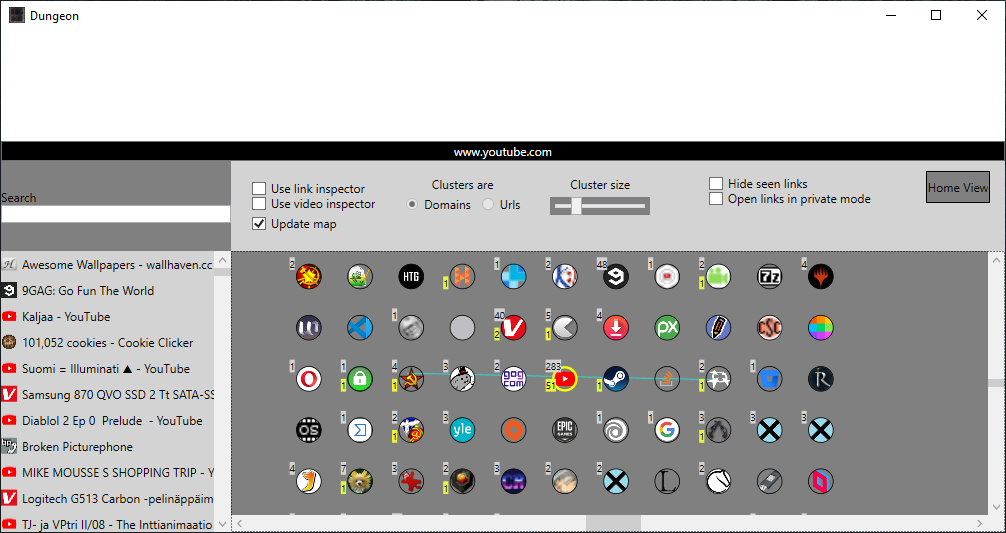
Dungeon window
Navigation
You can access the RBGeon standalone bookmark manager Dungeon window by clicking the RBGeon standalone bookmark manager logo on the tab that is on the right side of your screen. In the dungeon window you can see circles which are either domains or urls. The radio button on the top which says “clusters are” tells if the circles are domains or urls. You can navigate the content by left clicking on the circles. When the circles are urls you can double click on the circle on the center which has yellow border to open it. You can stop the circle map from updating by unchecking the update map option checkbox on the top part of the dungeon. When the checkbox is unchecked, you can open any url on the map by double clicking on it and a white border shows around the opened link to show that you have seen it. If you double click on a domain when the checkbox is checked you can see an unseen link if there is any. On the left side of the Dungeon window there is a list of links. If you click on a link the circle map updates so that that the clicked link is at the center of the circle map with yellow border. If you double click on a link on the list on the left you can open the link. On the left top corner there is a drop down menu of all the domains that other people and you have stored to the RBGeon standalone bookmark manager and you can choose between them. Domains on the list are sorted by popularity as is the list of links on the left.
Blocking unwanted content
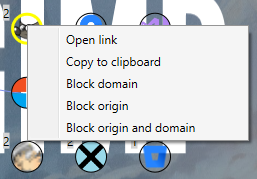
Right clicking on a shared bookmark
If you right click on the circle, you can see options. If the circle is domain, you can block it by right clicking on it and you can’t see anything from that domain on the Dungeon window unless you unblock it. Unblocking is explained earlier in this article. If you right click on a circle that is url you can copy it to the clipboard or block domain or origin or both. Blocking origin means that all the content from a user who have added that link is blocked.
RBGeon standalone bookmark manager Dungeon window options
On the top of the Dungeon window there is some options. The cluster size option sets the number of urls shown in a cluster at the time, it doesn’t update on real time, so you must click an url to see the changes when adjusting the slider. The hide seen links hides all the links that you have opened at least once. The Home view button on the top navigates the map to the beginning. You can zoom the circle map in and out by using the mouse wheel and you can navigate back or forward in the map view by clicking backwards or forwards button on the mouse. As mentioned earlier the use link inspector option allows you to see links in RBGeon standalone bookmark managers inbuilt browser which is half screen size. Last but not least there is a “use video inspector” checkbox. When it is checked youtube videos open automatically on a small window when a url circle is hovered with mouse.